Client Portal Step-by-Step
We are excited to introduce our all new Client Portals. In looking for a new provider to partner with, client convenience and security was our top criteria. We found those qualities in SafeSend®. Using state-of-the-art security we now provide you the opportunity to work with us digitally without having to register an account, create and update passwords regularly, download authentication apps, or give a blood sample (just kidding). This new technology relies on the security of your email by sending you a code each time you want to login. It's just that simple: click on a link in an email or visit our webpage and click "Client Login," enter the code from a second email sent to you, and you'll have access to the documents and files we prepare.
This article outlines the full client experience in the Client Portal dashboard. You can view and access outstanding tasks, upload and download documents, pay vouchers, distribute K-1s, and update settings in one convenient and secure location.
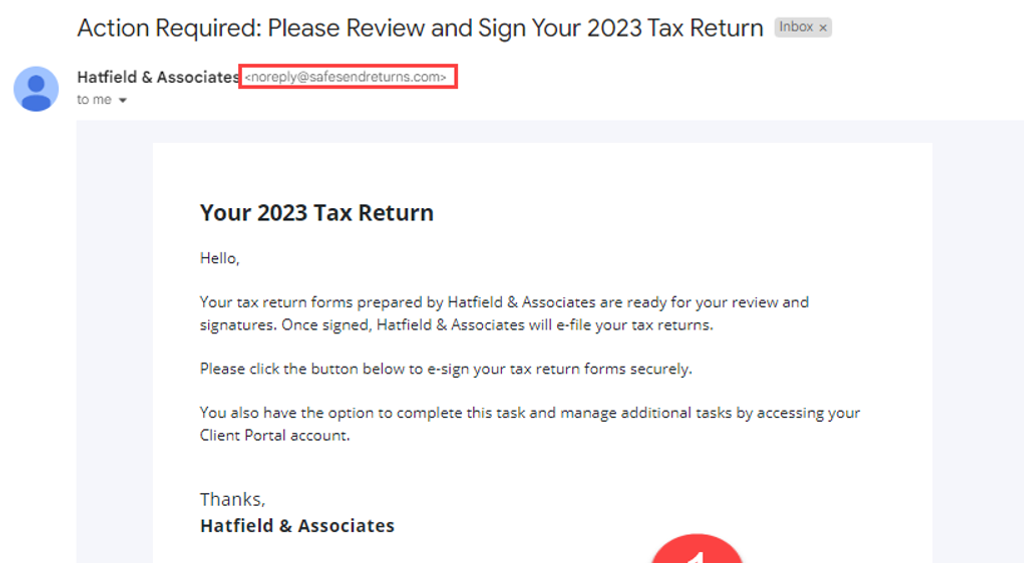
The client receives an email with a link to the Client Portal. All emails come from noreply@safesendreturns.com. Alternatively, you can navigate to our website and click "Client Login."
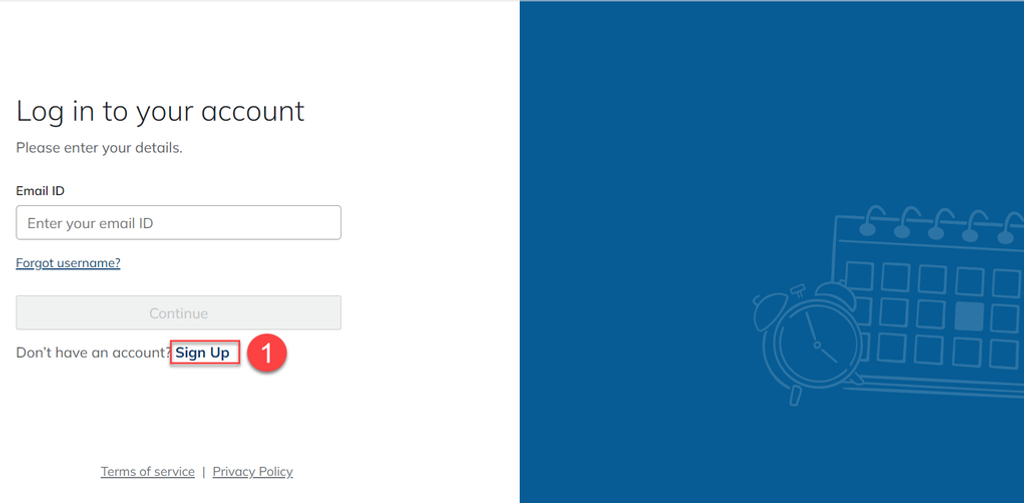
- Click Access Client Portal in an email or navaigate to ygcpafirm.com and click Client Login.
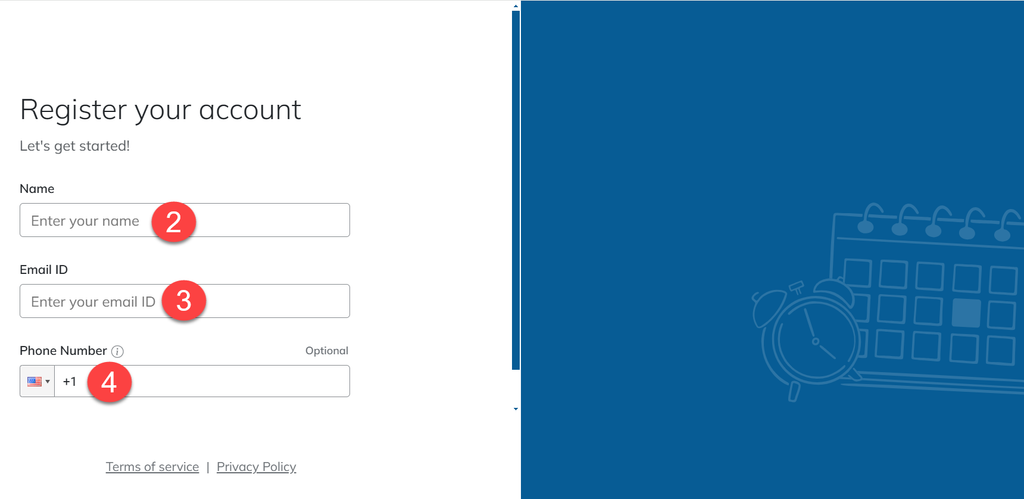
- Enter your Name.
- Enter your Email ID.
- Enter a Mobile Phone Number (optional).
- Click Verify your email.
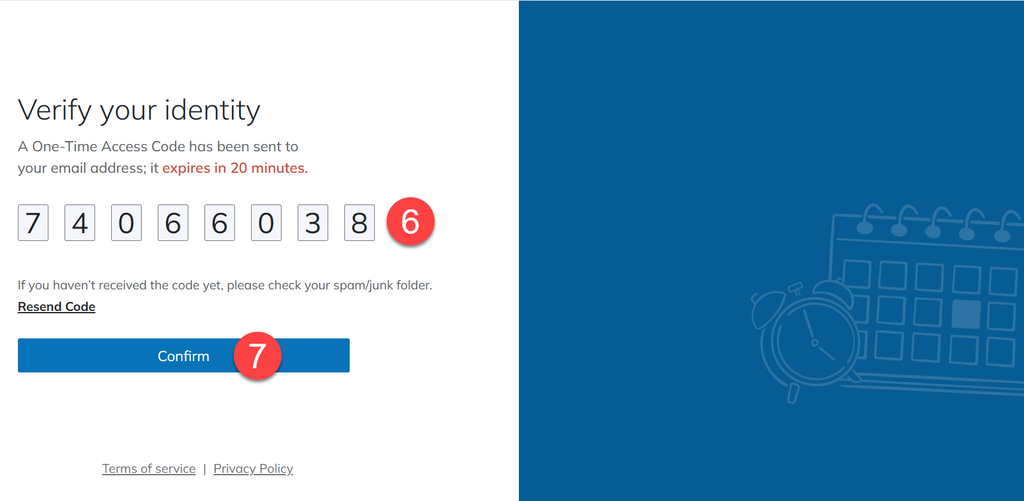
- Enter the Access Code sent to your email.
- Click Confirm.
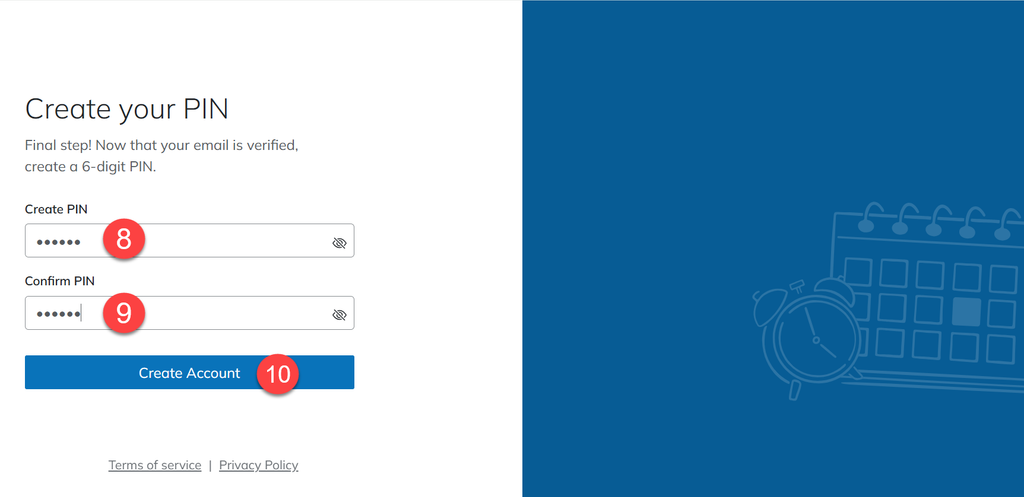
- Type a 6 digit PIN into the Create PIN field (used for future logins).
- Type the same 6-digit PIN into the Confirm PIN field.
- Click Create Account.
- Sign in to your account as outlined below.
Sign In To An Existing Account
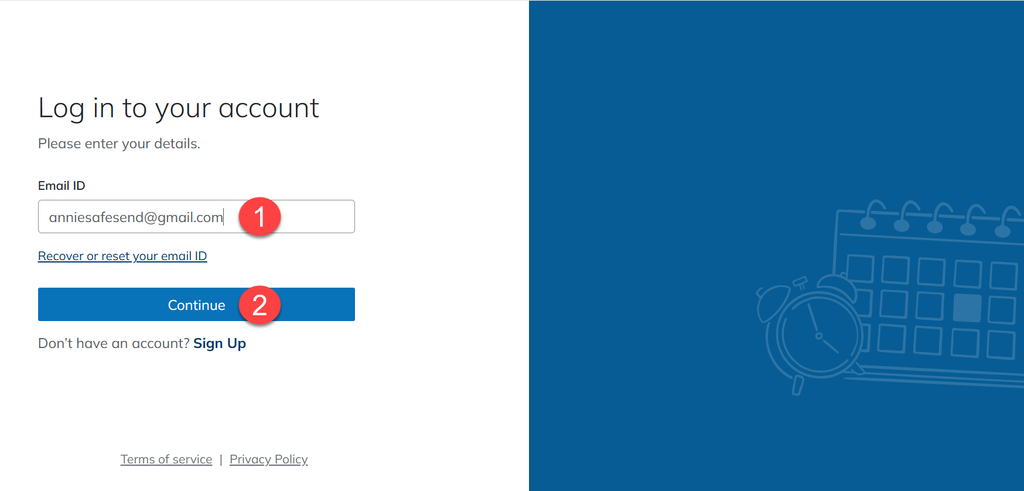
- Enter your Email ID.
- Click Continue.
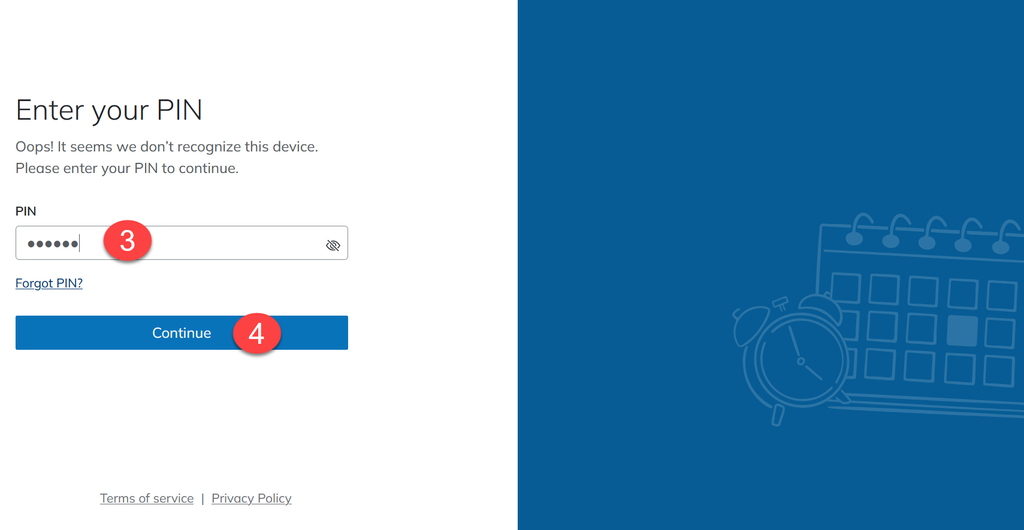
- Enter your PIN (only required when logging in from a new browser or device).
- Click Continue.
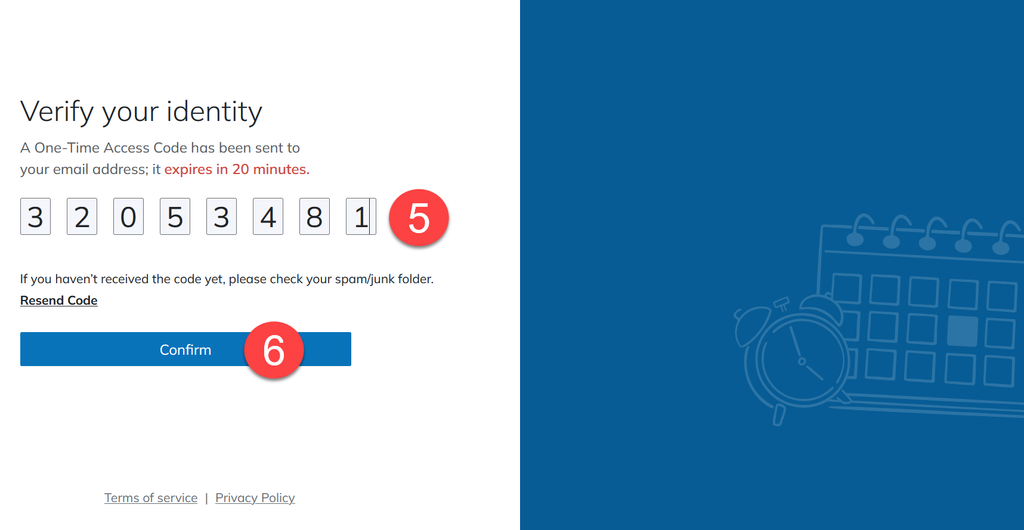
- Enter the Access Code sent to your email.
- Click Confirm.
Frequently Asked Questions
How do I recover or reset my email ID?
You can reset your email ID from the Client Portal login page if you have a recovery email set up.
Please note:
- A recovery email must be set up in your Client Portal for this feature to function.
- You can set up a recovery email in the Security section of your Client Portal account.
- See the Security Settings section below for more information.
- Click Recover or reset your email ID.
- Reach out to your tax firm to recover your email ID OR
- Click please click here to reset your email ID.
- Select the Email Address or Phone Number radio button.
- Enter the Recovery Email address or Recovery Phone Number (mobile number required).
- Enter the Existing Email ID.
- Click Continue.
- Enter the Access Code sent to your recovery email or phone number.
- Click Confirm.
- Enter the new email ID for your Client Portal.
- Click Continue.
- Enter the Access Code sent to your new Client Portal email.
- Click Confirm.
- Sign in to your account as outlined above.
Will I receive a notification when my return is ready to sign?
Yes. Email notifications will be sent from Youmans & Gardner, LLC, CPAs at noreply@safesendreturns.com. To prevent the email from getting filtered to spam/junk, we recommend adding this email addresses to your safe list.
Is it safe to enter part of my Social Security Number?
Yes. SafeSend Returns offers a secure system to view and sign your e-file authorization form(s).
Look for https:// at the beginning of the site URL and a locked padlock symbol in your browser’s URL bar to confirm you are on the secure site.
What if I don’t receive an email with my access code?
Check your spam/junk email folder. If you do not receive your code within the 20-minute time limit, please request another. You can also search your email for “noreply@safesendreturns.com.”
Where do the identity verification questions come from? What if I don’t remember the answers?
The questions SafeSend Returns asks are knowledge-based questions pulled from government and credit sources. You may be asked questions such as where you lived in a given year, or when you bought your car or home. In the event the questions do not apply to you, simply choose the answer that accurately reflects this. If you don’t remember the answers to the questions, or you answer incorrectly, you won't be able to electronically sign your e-file authorization form(s). You can instead print, sign, and return your e-file authorization form(s) to Youmans & Gardner, LLC, CPAs.
Will this work on any internet-connected device? Does SafeSend Returns offer an app for my smartphone?
This process can be completed on any computer, smart phone, or tablet via a web browser. There is currently no SafeSend Returns app available. The recommended browser to use is Google Chrome.
Will I have the option to download and print my return to retain for my records?
Yes. You can download and print your return from a computer. If you’re using a smartphone or tablet, you can review and e-sign your return package but may not be able to print it. Please use a laptop or desktop computer for the best printing experience.
How is this process different from e-filing?
SafeSend Returns allows you to electronically sign your e-file authorization form(s), but it won't submit your return to the IRS. Once signed, Youmans & Gardner, LLC, CPAS will be automatically notified, and will then complete the e-filing process for you, including submission to the IRS.
My spouse and I file our return jointly. How can we both sign the e-file authorization form(s)?
For spouses filing jointly, there are a few ways to sign via SafeSend Returns:
- If both spouses have an email address on file, each will receive an email with a link to view the return and sign the e-file authorization form(s). First, one spouse will receive the link with identity verification questions specific to him or her. He or she will sign the e-file authorization form(s) and confirm the other spouse’s email address, which will send an email link to the second spouse. The second spouse will answer identity verification questions specific to him or her, and then sign the form(s). Once the second spouse electronically signs the e-file authorization form(s), Youmans & Gardner, LLC, CPAs will be automatically notified.
- If only one spouse has an email address on file, he or she will receive an email with a link to view the return and sign the e-file authorization form(s). He or she will sign the e-file authorization form(s) and provide the other spouse’s email address, which will send an email link to the second spouse. The second spouse will answer identity verification questions specific to him or her, and then sign the form(s). Once the second spouse electronically signs the e-file authorization form(s), Youmans & Gardner, LLC, CPAs will be automatically notified.
- If only one spouse has an email address on file, he or she will receive an email with a link to view the return and sign the e-file authorization form(s). He or she will sign the e-file authorization form(s) and provide the other spouse’s email address, which will send an email link to the second spouse. The second spouse will answer identity verification questions specific to him or her, and then sign the form(s). Once the second spouse electronically signs the e-file authorization form(s), Youmans & Gardner, LLC, CPAs will be automatically notified.
- If a couple shares an email address, the initial recipient will receive an email with a Subject line that denotes who the link is being sent to for the respective individual to view the return and sign the e-file authorization form(s). He or she will sign the e-file authorization form(s) and provide the other spouse’s email address (same as used for initial delivery), which will send an email link to the second spouse that includes the respective signer’s name in the Subject line. Once the second spouse electronically signs the e-file authorization form(s), Youmans & Gardner, LLC, CPAs will be automatically notified.
Can I sign my dependent’s return electronically?
We will deliver your dependent’s return via SafeSend Returns; however, due to the knowledge-based authentication requirements of the IRS, a minor dependent may not qualify. In those instances, you will need to manually sign and return your dependent’s e-file authorization form.
I’d rather print and sign my e-file authorization form(s). Can I do that?
Yes - You can still print, sign, and mail your e-file form(s) back to Youmans & Gardner, LLC, CPAs if you’d prefer to do so.
After signing my e-file authorization form(s), will I receive confirmation that it was successfully submitted to the firm?
Yes! Once you sign your e-file authorization form(s), you will receive an email stating it was successful. The email will also include a link to download a copy of your tax return for your records.
Can I set up reminders for my quarterly estimated payment(s)?
If estimated payments are included in your review copy, you will automatically receive an email reminder before your payment is due.